

PHlove Login: Fast Account Access
Login PHlove lets you sign in with your registered username and password to access your account. After logging in, you can check your balance, open games, manage deposits and withdrawals, view rewards, and update account settings. If you cannot sign in, check your login details first, especially saved passwords or old credentials stored in your browser.
For returning users, Phlove keeps Login separate from registration, which makes the first decision simple: Existing account holders sign in with their registered credentials, while new users go through Register. Knowing the difference matters because creating another account is not a practical fix for forgotten access.
PHlove Login and Account Details
The Login window is built around two fields: Username and Password. Before either credential is accepted, each must fit the format shown on the screen.
The current Login form uses these rules:
- Username: 6–13 characters
- Username format: Letters and numbers only
- Password: 6–12 characters
- Password format: Letters and numbers only
- Special characters: Not accepted in either field
Below the credentials are Remember, Forgot Password, and the main Login button. The screen also includes confirmation that the user is at least 18 years old and has read Terms and Conditions.
Those character limits are more important than they first appear. They help separate two very different problems.
A username such as Marco2026 fits the visible format. A username such as Marco_2026 contains an underscore and may be rejected before the account is even checked. In the same way, a correctly formatted password can still fail if it is not the password registered to the account.
Passing the format check does not mean the credentials are correct. It only means they are written in a form the Login field accepts.
That distinction saves time when troubleshooting.
Completing the PHlove Login
Signing in should normally take less than a minute when the correct credentials are available.

Completing the PHlove Login
Open Login Instead of Register
Start from the PHlove homepage and select Login. The Login and Register choices sit close together, so check which one is active before entering anything.
If you already have an account, there is rarely a good reason to choose Register just because you cannot remember your password. Account recovery is the cleaner route.
Enter the Registered Username
Type the username originally connected to the account.
If the browser fills it automatically, check the value before continuing. Autofill is convenient, but it can also keep an old username from another account or an earlier saved entry.
A useful habit is to clear the field completely and type the username again when Login suddenly stops working.
Check three things:
- It contains between 6 and 13 characters.
- It uses only letters and numbers.
- It is the username belonging to the account you actually want to access.
Enter the Password
Next, enter the existing account password.
The accepted length shown on the Login screen is 6–12 characters, again using letters and numbers without special characters.
If you are unsure whether a letter or number was mistyped, use the password visibility control briefly. This is especially useful on mobile devices where a single incorrect tap can be difficult to notice.
Then press Login once.
Repeatedly trying random password variations usually makes the process less clear. When the password is genuinely forgotten, Forgot Password gives you a more direct route.
Username and Password Checks Before Retrying
Login errors are easier to solve when you first decide whether the problem is formatting or account credentials.
Suppose you type a password that is only five characters long. The form can identify that problem immediately because it does not meet the minimum length. The account itself has not necessarily been checked yet.
A different situation occurs when both fields meet every visible requirement but Login still fails. At that point, the likely issue is no longer the character format.
Before trying again, work through this short sequence:
- Delete the username and type it manually.
- Confirm that it contains 6–13 letters or numbers.
- Delete the password rather than editing the existing entry.
- Enter the password again carefully.
- Check whether browser autofill has inserted an older saved password.
- Use Forgot Password if you are no longer certain which password is current.
Copying credentials can also introduce invisible spaces. A username that looks like Juan888 may actually have a blank space at the beginning or end after being pasted. Manual entry removes that possibility quickly.
The same logic applies when someone has recently changed a password. A browser may continue offering the previous version, creating the impression that the account itself is unavailable when the stored credential is simply outdated.
Using Remember on the Right Device
The Remember checkbox is useful, but it should not become an automatic part of every Login.
On your own phone or personal computer, remembering account access can save time. You avoid re-entering the username each time and can move into the account more quickly.
The trade-off changes on a device other people use.
Leave Remember unchecked on:
- Shared family computers
- Borrowed phones
- Office or workplace computers
- Internet cafés
- Public computers
- Any device you cannot lock reliably
Casino account access is more sensitive than staying signed into a news or entertainment page. Once someone reaches the account area, they may also be able to view balances, transaction-related tools, promotions, member information, or other account activity.
A few seconds saved during Login is not worth leaving convenient access behind on somebody else’s device.
Forgot Password and Account Recovery
A forgotten password does not need to become a guessing exercise.
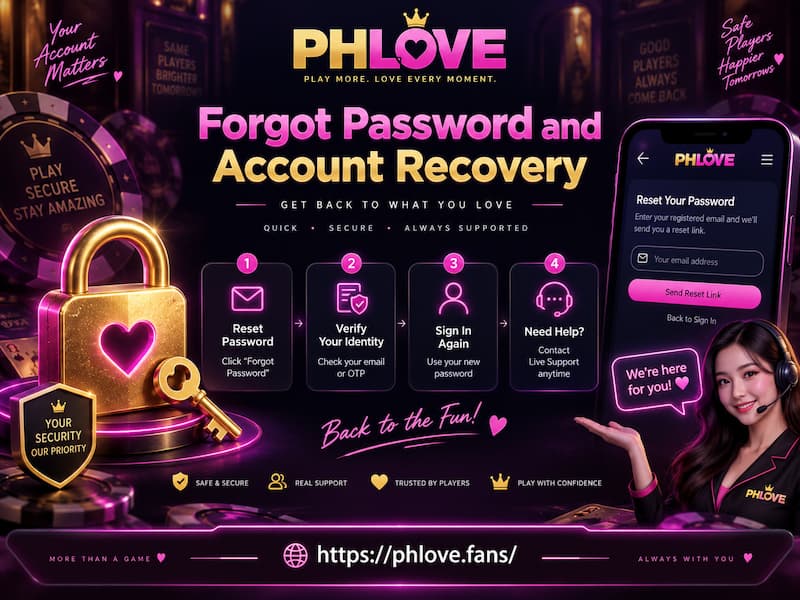
Forgot Password and Account Recovery
Use Forgot Password
Select Forgot Password from the Login window when you no longer know the current password with confidence.
Follow the verification and reset instructions presented during recovery. Recovery procedures can change, so use the options shown at that moment instead of assuming that a specific email, phone, or verification method will always be used.
After completing the reset:
- Return to Login.
- Clear any password already stored in the field.
- Enter the username manually.
- Type the new password.
- Sign in normally.
This last step matters because password managers sometimes continue filling the old password immediately after a reset.
When Recovery Still Does Not Restore Access
If the reset succeeds but Login still fails, first confirm that you recovered the correct account. Users with similar usernames, older registrations, or multiple saved credentials can easily mix them up.
PHlove also provides Live Support from the account navigation. That is the sensible next step when the credentials have been reset correctly but access still cannot be restored.
Avoid creating a second account purely to bypass the problem. It does not recover the original balance, account history, or account-linked information.
Fixing Common PHlove Login Problems
Most Login trouble falls into a few recognizable patterns. Identifying which one you are seeing is faster than trying unrelated fixes.
Red Validation Text Appears Immediately
A red warning underneath the field usually points to the entry itself.
Check the basics first:
- Username is 6–13 characters.
- Password is 6–12 characters.
- Only letters and numbers are used.
- No spaces were pasted before or after the credential.
- No symbols were added accidentally.
For example, Pedro99 follows the username format. Pedro@99 does not because @ is a special character.
Fix the field before worrying about browsers, internet connections, or account recovery.
The Details Look Valid but Login Fails
This is where format and identity separate.
A password such as Manila88 can fit the character rules perfectly and still be wrong for the account. The Login form accepts its structure, but the credentials must also match the registered record.
Try the following order:
- Retype the username.
- Retype the password.
- Remove anything inserted by autofill.
- Think about whether the password was changed recently.
- Use Forgot Password when uncertainty remains.
- Contact Live Support if recovery has already been completed.
This order avoids wasting time on technical troubleshooting when the real issue is simply an old credential.
The Login Window Does Not Respond
Only move to browser or connection checks when the fields themselves appear correct.
Try:
- Reloading the page once
- Closing and reopening the browser
- Checking whether the internet connection is stable
- Waiting for the Login interface to load completely before submitting
- Trying again after clearing an obviously frozen session
If other pages also fail to load, the connection is a stronger suspect. If everything else works normally but account access does not, credential recovery or support is more relevant.
Keeping PHlove Login Secure
A secure Login routine does not need to be complicated. A few habits remove most avoidable risks.
Use the PHlove address you normally access rather than signing in through unexpected links received in private messages, comments, or unfamiliar promotions. Bookmarking the correct destination can also reduce the chance of entering credentials on the wrong page.
Never give another person your password because they claim it is required for support. A password is meant to prove that you control the account; sharing it defeats that purpose.
Other sensible habits include:
- Do not save credentials on public devices.
- Lock personal phones and computers with a PIN, password, or biometric protection.
- Avoid reusing the same password across unrelated accounts.
- Change the password when you believe somebody else may know it.
- Treat unexpected password-verification requests outside the normal Login or recovery flow with caution.
These precautions become more important when the account connects to Peso balances, deposits, withdrawals, rewards, and personal member activity.
After Login: Finding the Account Tools
Successful Login takes you back into the account environment, where the useful next step depends on what you came to do.
The PHlove navigation includes areas such as:
- Deposit
- Withdrawal
- Promotion
- Reward Center
- Rebate
- Member Center
- Live Support
If you logged in specifically to check a withdrawal, go directly to Withdrawal. If the purpose was a promotion, reward, or rebate, use the relevant account section instead of searching through unrelated games.
That sounds minor, but it keeps Login connected to its real purpose: Getting back to the account, completing the intended task, and moving on without unnecessary clicks.